¶ 概述

本設備位於建築系館地下室,靠近C-Hub連通廊道上。可作業範圍約為120x240x25.4cm(4'x8'x10")。
¶ 作業程序
¶ 作業前準備
¶ 安全防護
做好基本安全防護措施
¶ 刀具與工具準備
- 準備Raccoon CNC室的刀具頭,根據材料特性(性質、厚度)材料準備好相對應的刀具
- 準備固定材料的工具,電鑽與螺絲釘等
¶ 放置刀具與材料
- 將CNC刀具放置在對應的位置(現今僅存6號刀具頭,剩餘皆須為聯絡廠商維修)
- 將第一塊板材固定在SpoilBoard上適當位置,通常為最靠近教導版處,確保材料邊緣皆貼齊於底平面,並且夾治具(含螺絲釘)不影響切割路徑
¶ 啟動電源與壓縮氣體
共有七處電源需要開啟
- 集塵機 (配電盤斷路器)
- 空壓主機 (配電盤斷路器)
- CNC雕刻機 (配電盤斷路器)
- 真空泵浦 (配電盤斷路器)
- 集塵器開關 (後方走道,集塵器旁)
- CNC雕刻機開關 (CNC雕刻機靠近工具架一側)
- 電腦主機
以及一處空壓機閥門
- 濾水桶 (CNC雕刻機空壓)
¶ CNC雕刻機設置
¶ 上傳檔案
- 使用公用帳號登入電腦(acc:
rccn_admin, pw:cnc) - 在桌面以
yymmdd格式建立資料夾,並將.cnc檔放入其中 - 以
Job Editor開啟檔案,目視檢查路徑及工具設定是否正確。
¶ 執行切割
- 確認工具正確
- 確認開啟集塵及真空泵浦
- 確認XYZ設置正確,可使用Go Home確認,注意移動路徑應無阻礙。
- 確認檔案無誤
- 先將Feedrate降低
- 將氣槍拉至方便使用處
- 在Job Editor中按下
file/execute - 在教導版按下Start
- 與CNC移動路徑保持距離,手持教導板姿勢以按中斷鍵位置做準備
¶ 切割過程
- 觀察切割情形調整Feedrate
- 如有更換工具,請重新設定Z基準面
- 如有更換材料,注意是否需要重新設定XYZ基準點
偶爾使用氣槍將過多的木屑清楚以免燃燒
¶ 切割後作業
¶ 關閉雕刻機
確認刀具頭卸下,主軸龍門位於工具架附近處後,開始關閉電源。
- 使用教導板回到目錄,按shutdown
- 關閉CNC雕刻機電源
- 集塵器及真空吸盤電源
¶ 清潔環境及關閉電源
- 使用氣槍整理作業至清空,使用後物歸原處,關閉濾水桶氣閥
- 將地面落屑掃除,將木屑集中至木屑垃圾袋中
- 關閉配電盤中所有有標示的斷路器
- 將外面的集塵箱電源關閉後,將木屑垃圾袋集中帶回工坊。
- 將剩餘材料帶離。
¶ 使用後保養
- 將刀具頭自台座卸下,帶至Raccoon工紡工具台座保養
- 帶上清潔手套拆卸工具頭,並上潤滑油保養
- 將拆卸好的零件歸位,共同維護,以免未拆卸與放置導致工具繡蝕損壞
¶ 操作說明
¶ 教導版按鍵
 Go Home |
 Feedrate Increase |
 Jog Z Up |
 Spindle RPM Increase |
 Pause |
 Set Surface |
 Feedrate Decrease |
 Jog Z Down |
 Spindle RPM Decrease |
 Start |
 Set Home |
.jpg) Move (7) |
.jpg) Jog Up (8) |
.jpg) Spindle Test (9) |
 Menu |
 Set Max Depth |
.jpg) Jog Left (4) |
 5 |
.jpg) Jog Right (6) |
 Shift |
 DNC |
.jpg) (1) |
.jpg) Jog Down (2) |
.jpg) Drive Enable (3) |
.jpg) Cancel (exit) |
 Jog Speed |
.jpg) Help(+/-) |
 0 |
.jpg) Soft Homes (.) |
 Enter |
¶ Jogging
The Jog Arrows are used to Jog the location of the spindle and to move through the menu. Jog Speed can be pressed to change the Jogging speed of the machine.
- Press Jog Speed to increase or decrease the Jogging speed of the spindle.
- Left Arrow is the Y-axis Positive Jog Key and Left Scroll Key in the menu.
- Up Arrow is the X-axis Positive Jog Key and Line Up Key in the menu.
- Down Arrow is the X-axis Negative Jog Key and Line Down Key in the menu.
- Right Arrow is the Y-axis Negative Jog Key and the Right Scroll Key in the menu.
- Press and hold Z-axis Up Jog Arrow or Z-axis Down Jog Arrow to raise or lower the spindle.
¶ Set Surface (Z=0)
The Set Surface function allows the operator to identify and set the surface of the material or the software Z reference point as the Z-axis Home (Z=0). Once set, the surface will not have to be reset unless the system is shut off or the material thickness changes.
- Make sure the vacuum pump is on. The vacuum pump will suck the material down so that the router can read the surface dimensions properly.
- Use jogging to position the tool bit anywhere over the material.
- Press Set Surface, input the tool index number if prompted. Slowly jog z-axis down until the tool bit is just touching the material surface.
- Press Enter to set the Z-axis Home position to the material surface. The spindle will retract 12.7mm(1/2") above the material surface after the Z-axis Home position is set. You should see the
Zread-12.7.
¶ Set Home (0,0)
The Set Home function allows the operator to identify the exact location of X=0, Y=0 on the material to be cut. This is the Soft Home location 0. The file that is to be executed on the table will use this location as the software reference point home or origin (0,0): the machine will begin and return to this new origin, and the X and Y coordinate locations are stored in the controller’s memory. The location of the Set Home position will be the new origin (0,0) until a new home is set or the current home is cleared by selecting Clr_Home from the Utility sub-menu. The software reference point must be the material home point.
- Press Jog Arrows to place the center of the bit over the front right corner of the material.
- Press Set Home .
- Press Enter to accept. This will store the absolute X and Y coordinate locations in the controller memory.
¶ Go home
The Go Home function is a return to the current 0,0 Soft Home and Tool Lift. The coordinates can be modified, but most operators prefer using soft homes for establishing different home coordinates during the cutting process. Press Go Home
¶ Move
The Move function allows the operator to enter exact values for X, Y, Z (0,0,0) where the first entry is X (length), the second entry is Y (width), and the third entry is Z (height). The X, Y, and Z values will reference from the Hard Home position until the Set Home and Set Surface functions have been completed. At that point, the X- and Y-axes will reference from the Set Home position. The Z value will reference from the surface of the material.
- Press Move .
- Enter the desired value for X using the number keypad (e.g., 4.0) and press Enter .
- Enter the desired value for Y using the number keypad (e.g., 4.0) and press Enter .
- Enter the desired value for Z using the number keypad (e.g., 0.0) and press Enter .
- Press Enter when the “?” is displayed to accept all settings and move the machine to the new coordinates.
- Press Cancel to return to the main display.
The Move function can also be used to verify a specific location. - Press Move .
- Press Enter three times to verify the current location of the X-, Y-, and Z-axes. The operator should press Enter to keep the axis value from changing when that value is shown on the screen.
¶ Feedrate Override
The Feedrate Override function allows the operator to adjust the X,Y travel of the machine and to change speeds from as little as 10% to as much as 100%. This affects the feedrate or cut speed when the cutter is moving through the material. The Feedrate Override has no effect when the machine is executing a rapid move above the material.
The cut speed will be shown on the keypad display as a percentage of the actual speed: Feed%= ###. The Feedrate Override determines the percentage by which the operator adjusts the cut speed.
- Press Feedrate Override to adjust the feedrate in 1% increments when a file is being executed on the machine.
- Hold Feedrate Override to adjust the feedrate in faster moving 1% increments when a file is being executed on the machine
¶ Spindle RPM Override
The Spindle RPM Override function allows the operator to control the RPM of the spindle from minimum to maximum levels. The spindle RPM can be adjusted while a file is being executed, and the current spindle RPM will be shown on the keypad display as RPM=####. The spindle speed will be set to the new value whenever the system receives a spindle speed command either automatically while a file is being executed or manually when the operator uses the Hot Keys.
- Press Spindle RPM Increase or Spindle RPM Decrease to adjust the spindle RPM by 100 RPM increments.
- Hold Spindle RPM Increase or Spindle RPM Decrease to adjust the spindle RPM by faster moving 100 RPM increments.
¶ Start
Pressing Start will begin a job file or execute a Cut Utility. When a file has been completed, the operator can press Start activate the replay buffer and begin the file again. Operators should never leave the machine unattended during the cutting sequence.
¶ Pause
The Pause function allows the operator to instantly stop any motion of the machine or any file. The Z-axis will move to the Tool Lift position, and the spindle will shut off. At this point, the operator can change any 2D cutting parameters or Jog the spindle out of the way to get a better look at the cut. When Continue is selected, the machine will automatically return to the position before Pause was activated and continue with the commanded motion or the file.
- Press Pause to stop the machine for any reason.
- Press Jog Arrows until the blinking cursor is over the first letter of the command to be executed. a. Continue finishes out the operation or file originally executed. b. Cancel ends the operation or file executed and shows Motion Cancelled... on the keypad display. c. Jog allows the operator to Jog the machine to any location within the table parameters. d. Params_2D allows the operator to make any quick changes in the 2D cut parameters.
- Press Enter to accept the command.
¶ 維護
¶ 定期保養
CNC空壓氣瓶與排水過濾器的排水
¶ 檢驗方式
- 氣槍噴出水分,須立即清除氣瓶水分。
- 定期每個月進行保養。
¶ CNC排水過濾器
- 將電箱電源關閉、其他電源需求關閉後,再進行拆除。
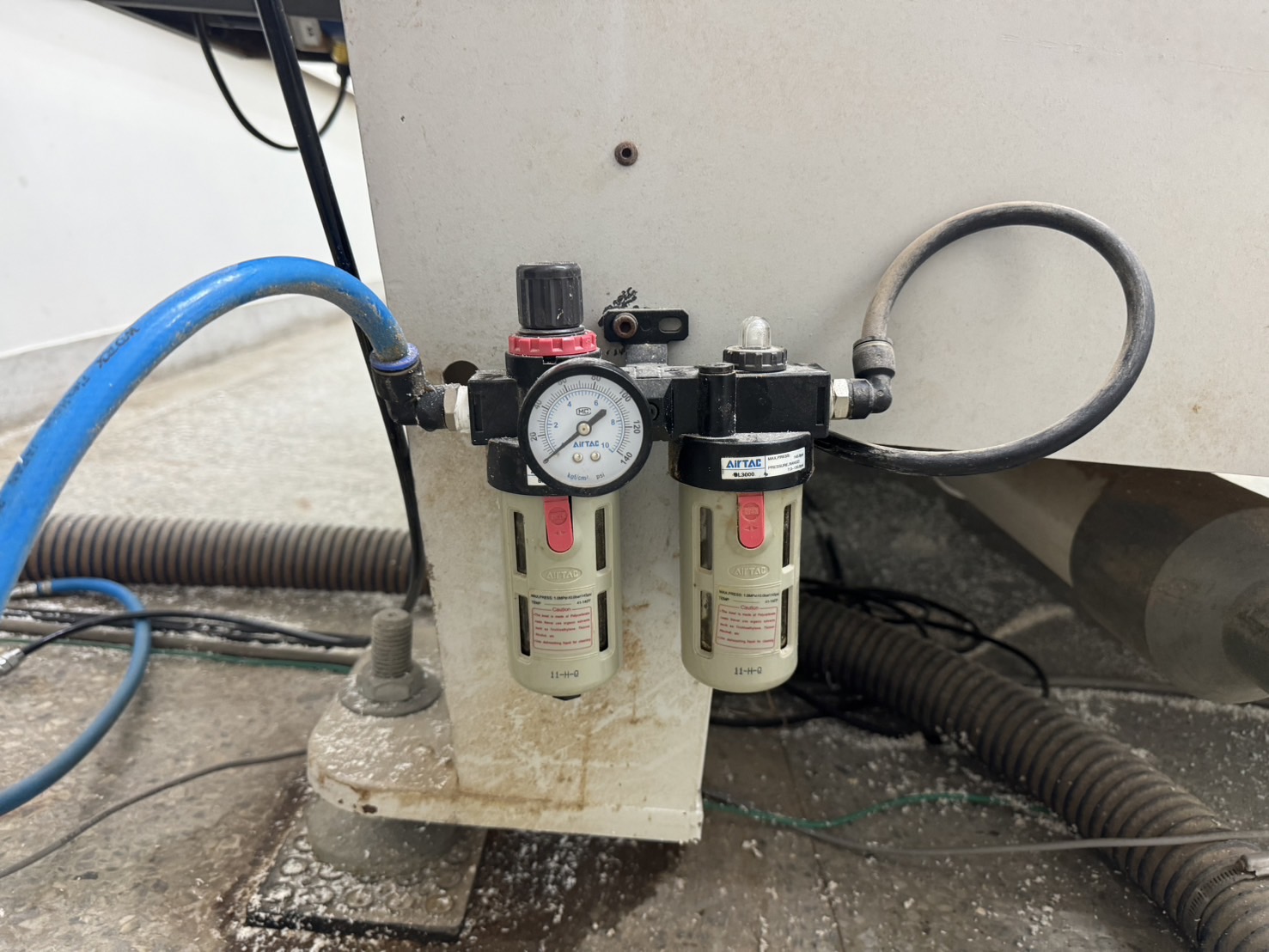
- 簡易開關按下紅色按鈕旋紐,解開固定,進行拆除。
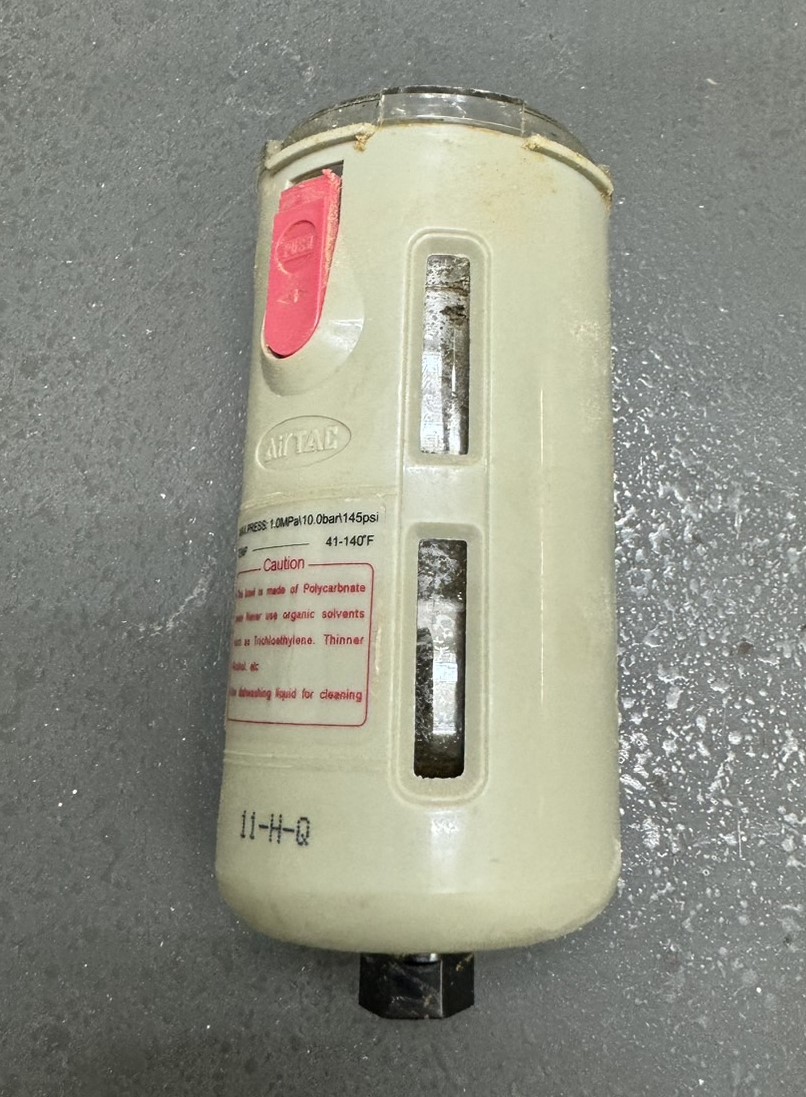
- 將內部殘留水分清除。
- 照原方向裝回,確定固定。
¶ 氣瓶拆除
- 將電箱電源關閉、其他電源需求關閉後。
- 將氣瓶連接管線拆除後,位於底部蝶形洩水閥打開,殘留於氣瓶水份排除。
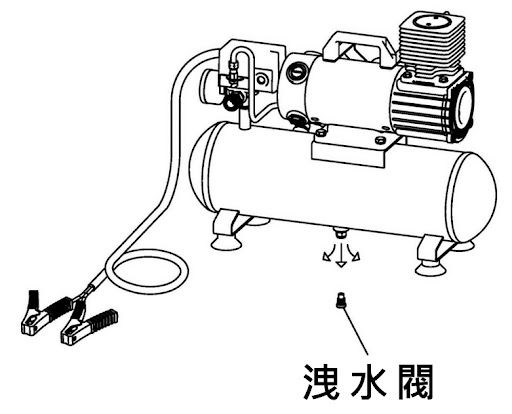
- 如底部洩水閥未能如期打開,也可以透過側邊氣管倒出多餘水份。
- 將剩餘管線接回。
¶ 更換控制電腦
¶ 安裝Suite 4
Setting a static IP and subnet address on the CNC controller
Use the CNC machine hand held pendant to access network settings. Press the Shift and Help keys. Use the Down arrow to navigate the menu to the Ethernet Information screen. Press DNC to make network settings changes. At the Ethernet Settings screen press Exit to specify IP address. At the Enter IP type in the address. Use the Enter key to move between groups. To continue press Enter for the screen prompt for the netmask. Enter the netsmask. When finished press Enter to save changes. Reboot the machine for the changes to take effect.
¶ Setting a static IP address on the PC
Assign a static IP address to the Windows PC through the network adapters connection properties applet. Select 'Use the following IP address' to enter an IP. This configures the Windows network which will make it possible for the Multicam software to use this IP address to connect to the CNC controller.
¶ Telling the Mulitcam software the Windows IP address
The CNC machine includes the Multicam software which is installed on the PC and used with the CNC machine. Use the Connection Manger to configure the software. Use the Add menu item to add a new connection. For an existing connection, right click and select properties to make changes. This does not add a new IP address to the PC but rather you are telling the Multicam software what existing Windows IP address to use to look for a connection to the CNC Machine controller.